Snapforce
A downloadable game for Windows
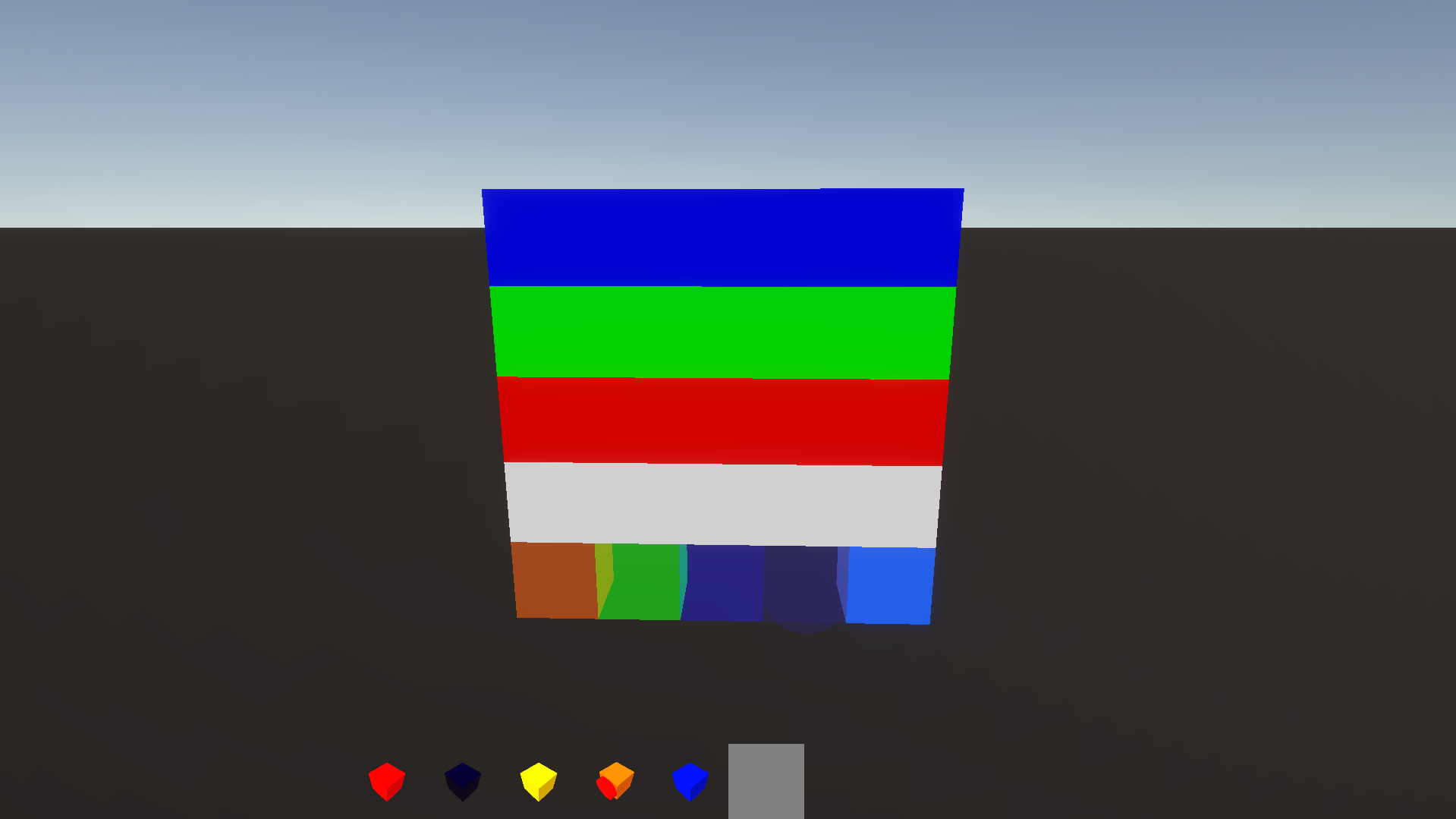
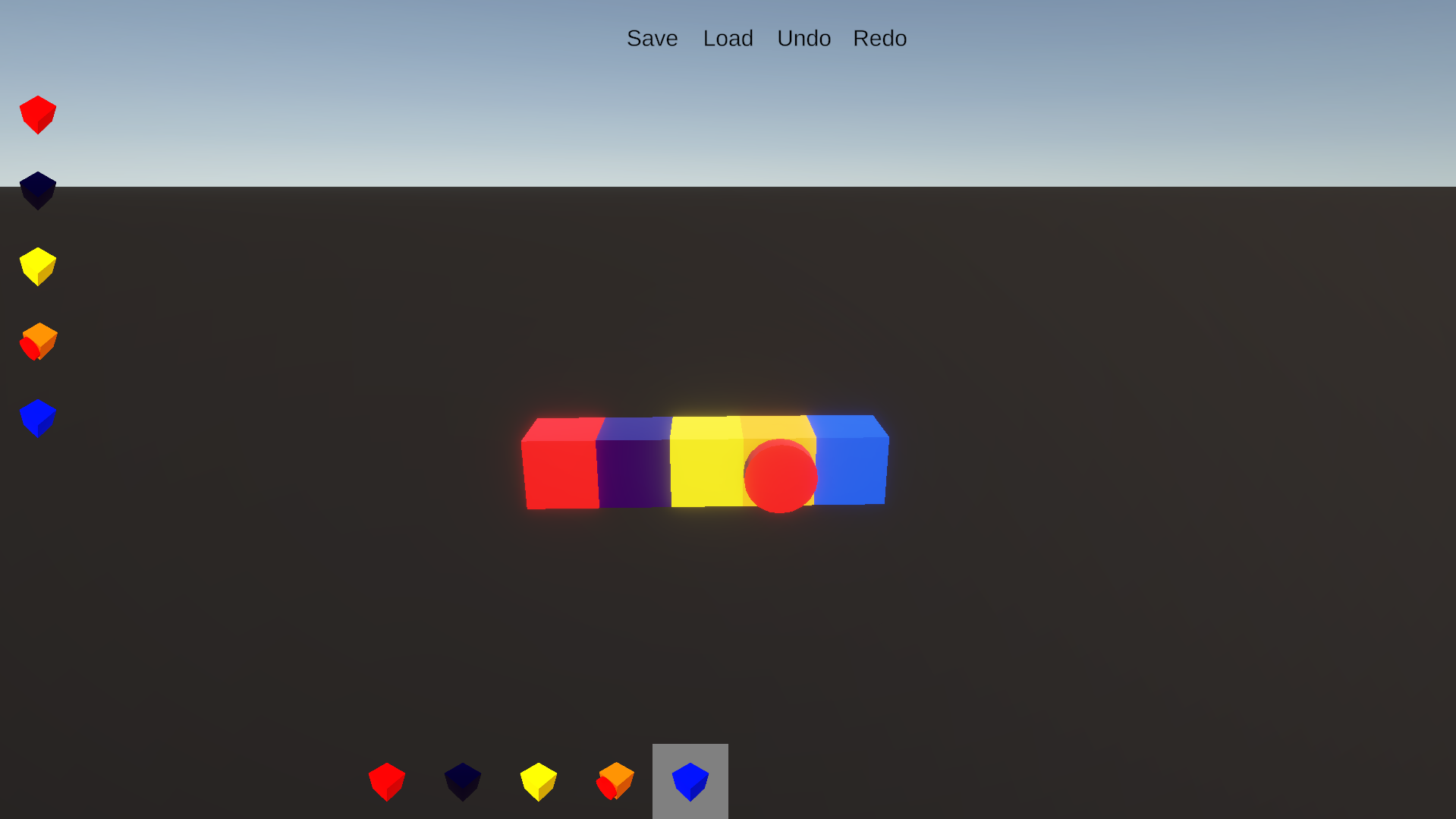
Made in five days, fueled by two consecutive 48‑hour all‑nighters. Snapforce is a block‑building sandbox where you can place, rotate, and stack blocks however you want. I am currently not working on this project.
It’s messy. It’s probably buggy. But it does work.
No tutorials, no handholding, no promises—just blocks, chaos, and a little bit of magic that somehow works.
The game supports both a Build Mode, for precise construction, and a Play Mode, where physics interactions, gravity, and dynamic behaviors are applied to test and experiment with creations. Blocks can have unique behaviors, including mass adjustments, thrusters, and Lua-scripted functionality, allowing complex mechanical or interactive designs. I am in the process of adding more blocks.
Controls
Main Menu
- Escape key
Camera & Movement
- Look around: Mouse X / Mouse Y
- Move forward/back/left/right: W / S / A / D
- Jump: Space
- Toggle camera/cursor lock: U
Inventory & UI
- Open/close inventory: I
- Toggle block editor: O
- Reselect block with camera: Right Mouse Button
- Select block to edit: Left Mouse Button
Building & Editing
- Place block: Left Mouse Button
- Break block: Right Mouse Button
- Toggle build/play mode: B
- Toggle paint mode: P
- Paint on block: Left Mouse Button (hold to paint)
- Unlock cursor to edit paint: Right Mouse Button
- V key opens game settings for the world.
Grid Mode
- 1-meter grid: [
- 0.5-meter grid: ]
- 0.25-meter grid: \
- Decrease grid size: -
- Increase grid size: =
Rotation & Flipping
- Rotate X axis: R
- Rotate Y axis: T
- Rotate Z axis: Y
- Flip X axis: F
- Flip Y axis: G
- Flip Z axis: H
Hotbar
- Scroll hotbar: Mouse Wheel
- Hotbar slots 1-0: 1, 2, 3, 4, 5, 6, 7, 8, 9, 0
- Clear hotbar slot: Right Mouse Button
Modding / AssetBundle Instructions
You can add your own modded blocks by simply creating an assetbundle in unity engine and placing it in a folder at: \AppData\LocalLow\Grace\Snapforce\Blocks
Unity version used if it matters: 6000.0.62f1 LTS
Ensure you match how the game makes blocks including the interface, use a tool like DnSpy to view the games code.
One prefab per AssetBundle is expected. Multiple prefabs won’t automatically be loaded; only the first is picked.
Use a editor script like this to build your assetbundle prefab block:
using UnityEngine;
using UnityEditor;
using System.IO;
public class BuildAssetBundles
{
    [MenuItem("Assets/Build AssetBundles")]
    static void BuildAllBundles()
    {
        string path = "Assets/AssetBundlesOutput";
        if (!Directory.Exists(path))
            Directory.CreateDirectory(path);
        BuildPipeline.BuildAssetBundles(path, BuildAssetBundleOptions.None, BuildTarget.StandaloneWindows64);
        Debug.Log("AssetBundles built to: " + path);
    }
}
Your prefab must implement IBlockSerializable if you want its runtime state captured and if you want it to be able to be saved and loaded in your creations.
PrefabName is critical — it must match the prefab filename.
If the prefab doesn’t implement IBlockSerializable, prefabName stays null, and the system treats it as a generic GameObject rather than a “block” with saved state.
Even if a modded block has children or complex materials, it will save all of that.
The interface my blocks implement to be registered in the save load system:
public interface IBlockSerializable
{
    string PrefabName { get; } // must match prefab filename
    string SaveState();
    void LoadState(string json);
}
For example like so:
using System;
using UnityEngine;
public class DefaultSerializableBlock : MonoBehaviour, IBlockSerializable
{
    // MUST match prefab filename exactly
    [SerializeField]
    private string prefabName;
    public string PrefabName => prefabName;
    // Example runtime value
    public float value = 1f;
    [Serializable]
    private class State
    {
        public float value;
    }
    public string SaveState()
    {
        return JsonUtility.ToJson(new State
        {
            value = this.value
        });
    }
    public void LoadState(string json)
    {
        if (string.IsNullOrEmpty(json)) return;
        State state = JsonUtility.FromJson<State>(json);
        value = state.value;
    }
}
To implement your own custom GUI menus for the block editor for your modded blocks just implement this interface:
public interface IBlockCustomEditorGUI
{
    void DrawCustomEditorGUI();
}
For example like so:
using UnityEngine;
public class ExampleModBlock : MonoBehaviour, IBlockCustomEditorGUI
{
    public float value = 1f;
    public void DrawCustomEditorGUI()
    {
        GUILayout.Label("Example Mod Block");
        value = GUILayout.HorizontalSlider(value, 0f, 10f);
    }
}
Purchase
In order to download this game you must purchase it at or above the minimum price of $1 USD. You will get access to the following files:
Development log
- Fixed major bugsDec 22, 2025
- Snapforce 1.6.0 update major bug fixDec 22, 2025
- Added ability to make custom GUI'sDec 22, 2025
- Fixed bugDec 22, 2025
- Added new blocksDec 22, 2025
- 1.5.0 update, added full modded blocks systemDec 21, 2025
- Added several fixes and small changesDec 21, 2025
- Many changes and bug fixesDec 20, 2025